Search Shopify's own community forums and variations of "how do I add a back in stock notification" come up again and again, often from merchants who assumed the feature was built in and only discovered otherwise after losing a sale on a sold-out page. It's a reasonable assumption, and it's wrong: by default, a sold-out Shopify product just shows a disabled button, with no way for a customer to signal they still want it.
The good news is that fixing this doesn't require a developer or any code edits. Here's exactly how to add a back-in-stock Notify Me button to your Shopify store, plus what to check before you assume the setup is working.
Why Shopify Doesn't Do This by Default
Some Online Store 2.0 themes include a basic email capture on out-of-stock products, sometimes labeled "Notify me" or similar. It looks like the feature merchants are searching for, but in most themes it only saves the shopper's email to your customer list. It doesn't automatically detect when the product is restocked or send anything on its own. A merchant would have to notice the restock and manually email everyone who signed up, which defeats the purpose of the feature entirely.
That gap is exactly what a dedicated back-in-stock app closes: the automatic part, not just the email capture.
Adding a Notify Me Button With a Back-in-Stock App
The setup itself is short. Here's the shopify back in stock setup process from start to finish:
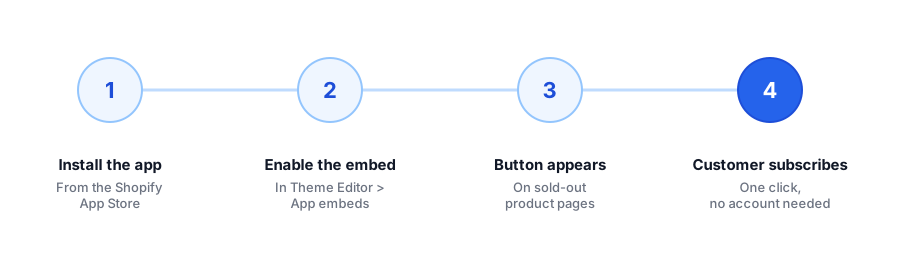
- Install a back-in-stock app from the Shopify App Store, such as Griffin.
- Open the Theme Editor and enable the app's embed under App embeds, on your live published theme, not a draft.
- Visit a sold-out product page to confirm the Notify Me button appears where the Add to Cart button normally sits.
- Customize the copy and styling if the app allows it, so the button matches your store's tone and branding.
- Test the full flow by subscribing with your own email, then marking the product back in stock to confirm the alert actually sends.
Griffin adds a variant-aware Notify Me widget in one click, no theme code edits required. Free to start.
Install Griffin on ShopifyWhat the "Sold Out" Button Options Actually Mean
Once the app is installed, you'll typically see a couple of choices for how the sold-out button should behave: replace the disabled Add to Cart button entirely with Notify Me, or keep the disabled button visible and place Notify Me just below it. Either works; the more important setting to get right is at the product level, not the widget level.
Shopify only treats a product as "out of stock" if inventory tracking is turned on and the variant's inventory has actually hit zero with continue-selling-when-out-of-stock turned off. If that setting is on, Shopify will keep letting customers "buy" a product with no stock, and the Notify Me button won't have a reason to appear, since as far as Shopify is concerned, the item isn't sold out at all.
Common Setup Mistakes to Avoid
Most first-time setups go smoothly, but a few small missteps come up often enough to call out before you consider the job done:
- Editing the wrong theme. It's easy to enable the app embed on a duplicate or draft theme while testing, then forget to repeat the step on the theme that's actually published. Always confirm which theme is live before you check the storefront.
- Leaving continue-selling turned on. If a variant is set to keep selling once inventory hits zero, Shopify never marks it sold out, so the Notify Me button has nothing to trigger on. Check this per variant, not just at the product level.
- Skipping the end-to-end test. Enabling the embed and seeing the button appear isn't the same as confirming the email actually sends. Subscribe with your own address and mark a test product back in stock before trusting the setup with real customers.
- Forgetting variant-level subscriptions. If your store has real size or color variants, make sure the app tracks subscriptions per variant rather than per product, or customers will get notified for the wrong option.
FAQ
Does Shopify have a built-in back-in-stock notification feature?
Some Online Store 2.0 themes include a basic email capture on out-of-stock products, but it typically just saves the address rather than automatically sending a restock alert. A dedicated app is needed to send the notification automatically when inventory updates.
Do I need to know code to add a Notify Me button?
No. A theme app block-based back-in-stock app adds the button through the Shopify Theme Editor, the same place you'd customize any other section, with no manual code edits required.
Will the Notify Me button show up automatically on every out-of-stock product?
Once the app embed is enabled, yes, as long as the product's inventory is tracked and set to stop selling when it reaches zero. If continue-selling-when-out-of-stock is on for a variant, Shopify won't mark it as sold out, so the button won't appear.
What happens after a customer clicks Notify Me?
Their email is saved against that specific product variant. When the merchant restocks it, the app automatically sends a restock email to everyone who subscribed to that variant, with no manual list export needed.
The Bottom Line
A sold-out page doesn't have to be a dead end. Installing a back-in-stock app, enabling its embed, and double-checking your product inventory settings is a setup you can finish in a few minutes, and it turns every out-of-stock moment into a recoverable sale instead of a lost one.
If the button doesn't show up after setup, our guide on common back-in-stock app problems and fixes covers the usual causes. Otherwise, Griffin installs in one click with a variant-aware Notify Me widget, free to start. Install Griffin on the Shopify App Store to get it live on your store today.