A shopper opens a product page, the item is out of stock and the Add to Cart button is still there, bright and clickable. Some buy anyway and some are confused when checkout stops them. Merchants regularly ask, in Shopify's community forums and elsewhere, how to handle the disabled Add to Cart button on sold-out pages, and the replies range from a settings change to custom theme code. The honest first answer is that on most modern themes the button changes to "Sold out" by itself, so a live button usually means a setting is overriding that. This post walks through the causes in order, then the options for what to show instead. Theme details differ, so check your theme's documentation and Shopify's current help pages.
First, Check the Three Settings That Cause It
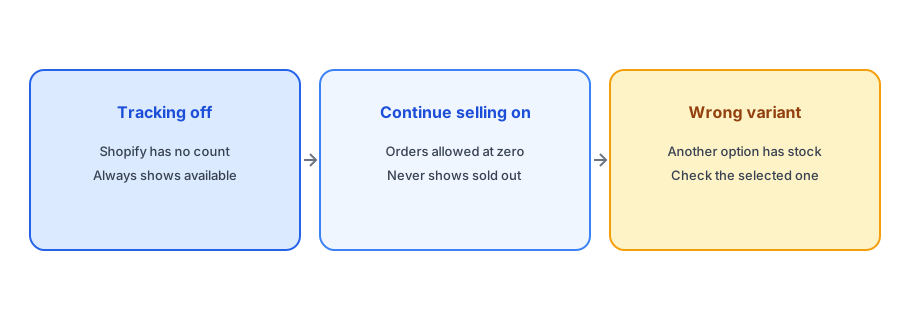
Before touching any code, look at the product's inventory. Three settings explain most live buttons on sold-out items. First, quantity tracking: if Track quantity is off for the variant, Shopify has no count and treats the variant as always available, so the button never changes. Our post on the Track quantity setting explains it. Second, continue selling: if the option to sell when out of stock is on, customers can order at zero, so Shopify never marks the variant sold out; see alerts when continue selling is on. Third, the selected variant: the page may be showing a variant that still has stock while the one the shopper wants is gone. Check each variant, not just the product.
Then Check the Theme and Apps
If the settings are right and the button is still live, look at the theme. Some themes let you change the sold-out label and behavior in the theme editor, and others need a small template change. Apps that modify the buy area, such as bundle builders, quick-view tools and variant swatch apps, can override the default behavior or add their own buttons. Test with apps disabled one at a time on a duplicate theme to find a culprit. Community threads show a range of fixes, from hiding disabled buttons with a style rule to wrapping the button in an availability check. Those fixes are specific to a theme and version, so treat them as starting points and not as universal recipes, and ask a developer if you are not comfortable editing theme files.
Disable, Hide or Replace?
Once the button behaves, decide what the shopper should see. A disabled button labeled "Sold out" is honest and works everywhere. Hiding the button entirely removes the visual cue, and unless something replaces it, the shopper is left with a page that goes nowhere. The best option for products that will return is to replace the button area with a way to be told, a Notify Me form with a clear label such as "Email me when it is back". That keeps the shopper on the page and turns a dead end into a signup. Our post on Notify Me button text has wording ideas.
Replace a dead Sold out button with a way back. Griffin adds Notify Me to each sold-out variant and is free to start.
Install Griffin on ShopifyDo Not Forget the Other Buttons
The Add to Cart button is not the only way to buy. Dynamic checkout buttons, a Buy it now option and quick-add buttons on collection pages are separate elements. A shopper may find a way to start checkout through one of them even when the main button is disabled. After you change the product page, test the collection grid and any quick-view windows too. Our guide to Notify Me on collection pages covers the grid, and the sold-out badge guide covers the label.
When Selling at Zero Is Intentional
Sometimes the live button is deliberate: you take backorders or preorders on purpose. In that case the problem is not the button but the missing message. Say clearly that the item ships later and when; our guide to backorder messaging gives wording. Decide product by product whether you want backorders or a sold-out state with a restock alert, rather than leaving the default to decide for you.
Test the Result
Make the change on a duplicate theme, test on a real sold-out product on desktop and phone, and then publish. Switch between variants to be sure the button and the form follow the selection; our post on why the button can disappear on a variant switch covers a common failure. Repeat the check after any theme update; see what breaks after a theme update.
A Practical Checklist
- Check Track quantity, Continue selling and the selected variant before anything else.
- Disable apps one at a time on a duplicate theme to find overrides.
- Prefer a disabled "Sold out" button or, better, a Notify Me form over a hidden button.
- Test dynamic checkout, Buy it now and quick-add buttons as well.
- If selling at zero is intentional, add a clear backorder message.
- Test on desktop and phone, and recheck after theme updates.
FAQ
Why is Add to Cart still active on my sold-out product?
Usually because Track quantity is off, Continue selling is on or the shopper has selected a variant that still has stock.
Should I hide the Add to Cart button on sold-out products?
It is better to disable it with a Sold out label or replace it with a Notify Me form, so the shopper still has something to do.
Do I need to edit theme code?
Often not. Check the settings first. If code is needed, work on a duplicate theme or ask a developer.
What about Buy it now buttons?
They are separate from Add to Cart, so test them as well after you change the product page.
The Bottom Line
Fix the setting before the theme, and give shoppers something useful in place of a button that cannot be used. Griffin is a Shopify back-in-stock app you can install from the Shopify App Store, free to start.