You restocked a popular product, your app says it sent 140 restock emails, and three days later you have a handful of orders. Did the emails arrive? Did anyone see them? The delivery tracking in back-in-stock apps is meant to answer that, but the labels it uses (sent, delivered, opened, clicked, bounced) are easy to over-read. This guide explains what each status actually tells you, why restock emails bounce, and what to do about the ones that fail. It does not quote industry benchmark rates, because published averages mix very different lists and rarely match a small store's restock list.
The Journey of One Restock Email
A restock email passes through several hands before a shopper sees it. First your back-in-stock app notices the inventory change and queues a message for each subscriber of that variant. Then it hands each message to an email delivery provider, which is when the email counts as sent. The provider connects to the shopper's mail server, such as Gmail or Outlook, and tries to hand it over. If that server accepts it, the email is delivered. Only after that can the shopper open it, and only some of the people who open it click through to the product.
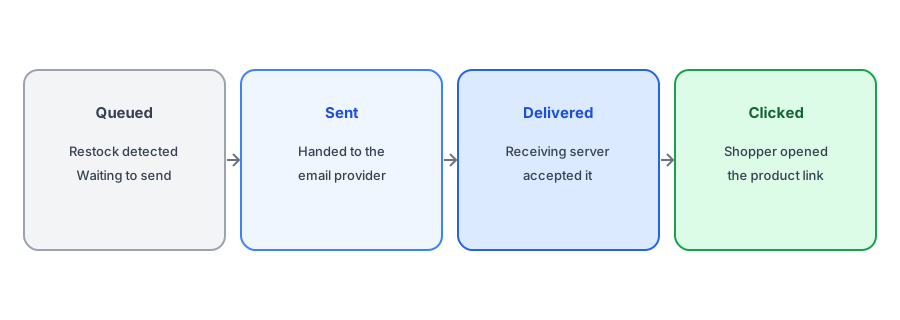
Each step can fail on its own, and each status only covers its own step. Treating "sent" as "seen" is the most common mistake merchants make when they judge whether a restock went well.
What Each Delivery Status Means
Queued
The app has created the notification but not handed it to the email provider yet. Emails usually sit here only briefly. If many stay queued for a long time, the app may be working through a large batch, waiting on a retry, or held back by a setting such as a per-restock cap.
Sent
The email provider accepted the message for delivery. That is all. It has not reached the shopper's mail server yet, and it can still bounce.
Delivered
The receiving mail server accepted the email. This is the strongest signal you have that the message arrived, but a delivered email can still land in a spam or promotions folder. Delivered vs opened is the gap between "the server took it" and "a person looked at it", and only the second one sells anything.
Opened
Open tracking relies on a tiny image loading. Some mail apps load images automatically, which inflates opens, and others block images, which hides real ones. Our post on Apple Mail Privacy Protection and open rates explains why opens are now a weak signal on their own.
Clicked
The shopper, or sometimes a corporate security scanner that tests links, followed a link in the email. Clicks are a better signal than opens, and orders are better still. Our guide on measuring revenue from back-in-stock alerts covers the last step.
Failed or bounced
The message could not be delivered. A failure can be temporary or permanent, and the difference matters for what you do next.
Why Restock Emails Bounce
A bounce is the receiving server saying no. The reasons for a restock email bounced report usually fall into a few groups:
- The address does not exist. A typo at signup, such as "gmial.com", or a mailbox that was closed while the shopper waited. Restock lists age, and an address that worked in March may be gone by October. This is a permanent (hard) bounce.
- The mailbox is full or the server is busy. These are usually temporary (soft) failures, and a later retry often succeeds.
- The receiving server rejected the sender. This can happen when sending domain authentication is incomplete or the sender's reputation is poor. Our guide to restock emails going to spam covers authentication.
- A spam complaint. Strictly this is not a bounce, but if a shopper marks the email as spam, you should stop emailing them. Treat it as a permanent failure.
Double opt-in helps a lot here. When subscribers confirm their address before they join the list, typos and fake addresses mostly never make it onto it, which keeps your back in stock email bounce rate low when the restock finally comes.
Griffin shows the delivery status of every restock email it sends, so you can see what reached shoppers and what did not. Free to start.
Install Griffin on ShopifyHow Griffin Shows Delivery Status
In Griffin, the Notifications report lists every restock email with one of five statuses: Queued, Sent, Delivered, Failed or Cancelled. A failed email shows the reason. Griffin retries temporary failures automatically, and you can retry a failed notification yourself from the report. Bounces and spam complaints are recorded as permanent failures, so Griffin does not keep trying an address that cannot or should not receive mail. Cancelled means Griffin deliberately did not send, for example because the variant sold out again before the email went out, or because a per-restock cap was reached. That is different from a failure, and it is usually the right outcome.
What to Do When Restock Emails Fail
- Check the scale. One or two failures on a large restock are normal list decay. A large share failing on one restock points to a sender or authentication problem rather than bad addresses.
- Read the reasons. "Address does not exist" needs no action beyond letting the subscriber go. Rejections that mention authentication or policy need a look at your sending setup.
- Do not re-add hard bounces. Sending again to an address that hard-bounced hurts your sender reputation and helps nobody.
- Look at the age of the list. If most failures come from signups that are many months old, consider expiring old requests, as described in our guide to cleaning up subscriber lists.
- Test before a big restock. Sign up with your own address and run a restock on a test product. Our 10-minute test plan walks through it.
Reading the Numbers Without Fooling Yourself
Work from the bottom of the funnel up. Orders from restock emails are the outcome you care about. Clicks tell you whether the email gave shoppers a reason to come back. Delivered tells you whether the email had a chance at all. A restock with high delivery and low clicks has a message or timing problem; one with low delivery has a list or sending problem. Opens sit in the middle and are too noisy to settle either question on their own.
FAQ
What is the difference between sent and delivered?
Sent means the email provider accepted the message. Delivered means the shopper's mail server accepted it. An email can be sent and still bounce.
Does delivered mean the shopper saw the email?
No. Delivered means the receiving server accepted it. It may still be filtered to spam or never opened.
Why do restock emails bounce?
Usually because the address no longer exists or was mistyped, the mailbox is full, or the receiving server rejected the sender.
Should I resend to addresses that bounced?
Not after a hard bounce. Temporary failures can be retried, but repeated sends to dead addresses damage sender reputation.
The Bottom Line
Delivery tracking is useful when you read each status for what it is: a record of one step, not proof of a sale. Griffin records the delivery status of every restock email and is free to start: install it from the Shopify App Store.