The Notify Me button belongs on sold-out products. When it shows up on something a shopper can buy, it confuses people and it can cost you the sale. Most of the time the reason is not a bug: it is a setting that is doing exactly what it says, or a theme that did not tell the page the variant changed. The diagnostic below takes four facts about a variant, the setting, whether Shopify tracks its stock, whether continue selling is on and the quantity, and tells you whether Griffin's button will show and why. If you are searching for a Notify Me button showing on an in-stock product in Shopify, start there, then work through the list of other causes. The values shown are examples.
The Button Diagnostic
How the Widget Decides
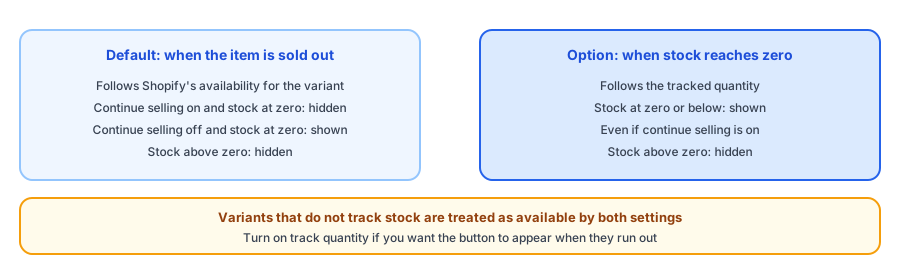
Griffin's widget reads the product page and decides for the variant the shopper has selected. By default it asks Shopify whether the variant can be bought, using the availability that Shopify reports for it, so continue selling does not change the answer: a variant that can still be ordered at zero stock is treated as available and the button stays hidden. The second option, shown in the app as when stock reaches zero, uses the tracked quantity instead and shows the button at zero or below even if the store keeps taking orders. If a variant does not track stock at all, that option falls back to availability, because a quantity means nothing there.
The widget updates when the variant changes. It listens for the variant events that many themes fire, for changes to the product form, for the variant parameter in the page address and for the form's variant field, so the button follows the shopper's choice. It also ignores variants that belong to a different product on the page, such as those in a quick-add drawer.
Common Causes, in Order of Likelihood
- The stock setting is set to follow quantity. With continue selling on, a variant at zero can be sellable and still show the button. That is the setting working as chosen; switch it if you do not want it. The continue selling guide explains the trade-off.
- One variant is sold out and another is not. The button follows the selected variant, so a sold-out size shows it while an in-stock size hides it. See the variant switch guide.
- The page did not report a variant change. A custom picker, a page builder or a heavily modified theme can skip the usual signals, leaving the button as it was for the first variant. Switch through every variant and watch; our custom theme guide covers fixes.
- The stock count is not what you think. The quantity a storefront sees can differ from the total in your admin if stock sits at locations that do not fulfil online orders; check how your locations are set up, as the multi-location guide explains.
- The theme editor preview. In the theme editor the inline form always shows so you can see where it sits. Check the live store, not the editor.
- A second source of Notify Me. Another app or a theme feature may be adding its own button. Turn one off.
- A theme update. After one, blocks and embeds can move; see the theme update guide.
How to Test in Five Minutes
- Open the live product page in a private window.
- Pick each variant in turn and note whether the button shows.
- Compare with the stock and the continue selling setting for each variant in your admin.
- Check the widget setting for when the button appears.
- Repeat on mobile, and after any theme change. The test notification guide walks through the full flow.
Hiding the Widget on Purpose
If you want the widget off for certain products, Griffin, a Shopify back-in-stock app, skips products tagged griffin-hide, and shoppers already subscribed to those products are still notified when they are back in stock. This is the opposite problem to a button that appears on in-stock products: the widget is removed from the page entirely. Confirm the current instructions in the app. Signups are recorded per product and variant and stored in Griffin's own records, and the free plan includes 100 notifications a month. For choosing between a popup and an inline form, see popup or inline.
The right button at the right time turns sold-out pages into signups. Griffin shows Notify Me on the variants that cannot be bought.
Install Griffin on ShopifyFAQ
Why is the Notify Me button showing on a product that is in stock?
The usual causes are a stock visibility setting that follows the stock count instead of Shopify's availability, a variant change the page did not report, a variant that is out of stock while another is in stock, and a theme editor preview that always shows the form.
Which setting controls when Griffin's button appears?
The widget settings have a choice called When should the button appear. The default shows it when the selected variant cannot be bought, and the other shows it when tracked stock reaches zero. Confirm the wording in the app.
Does the button follow the variant the shopper picks?
Yes. Griffin listens for variant changes from the theme, from the product form and from the page address, and updates the button for the selected variant. Themes with unusual variant pickers can bypass those signals, so test each variant.
Can I hide the button on certain products?
Yes. Griffin skips products tagged griffin-hide, and shoppers who already subscribed to those products are still notified when they are back in stock. Confirm the current instructions in the app.
The Bottom Line
When the button shows where it should not, check the setting first, then the variant, then the theme. Most cases are one of those three. Griffin is a Shopify back-in-stock app you can install from the Shopify App Store, free to start.