A merchant creates a purchase order for 200 units, marks it as ordered, and waits for the restock emails to go out. Nothing happens. Days later the boxes arrive, someone receives them in the admin, and suddenly every subscriber gets an email at once. Nothing is broken. A shopify purchase order transfer restock alert fires when stock becomes available to sell, and in Shopify that happens when inventory is received, not when it is ordered or shipped. This guide explains the inventory states involved and how to time receiving so restock emails match what you can actually ship.
Inventory States in Shopify
Shopify tracks several quantities for each variant at each location. The ones that matter here are:
- Available: stock you can sell right now. This is the number shoppers effectively see, and the number restock alerts follow.
- Committed: stock reserved for orders that are not fulfilled yet.
- Unavailable: stock you hold but cannot sell, such as damaged items, items in quality control or safety stock.
- Incoming: stock expected to arrive from purchase orders or transfers.
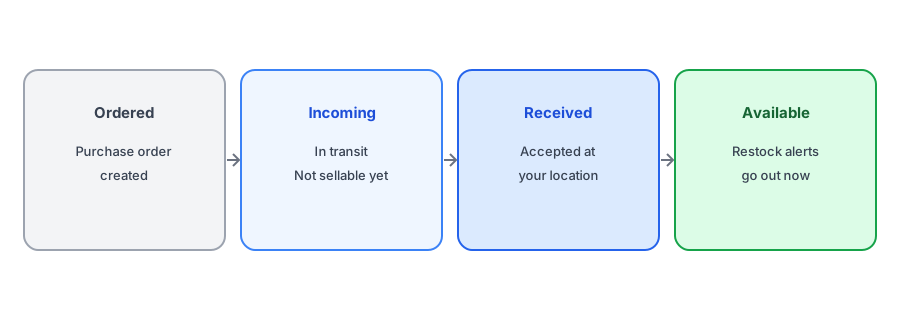
Incoming stock is not sellable. Shopify's help center describes incoming quantities moving to available automatically once you receive them. Until then, a product with 200 units incoming and 0 available is still sold out as far as your storefront and your back-in-stock app are concerned.
When You Receive a Purchase Order
Purchase orders in Shopify record what you have ordered from a supplier and where it is going. Creating the order, and marking it as ordered, only adds incoming stock. The step that matters for back-in-stock alerts is receiving: when units are accepted at the destination location, they become available. In Shopify's current admin, purchase order stock is received through the inventory transfer linked to the purchase order. If you reject some units, for example because they arrived damaged, those are recorded on the transfer without adding to available stock.
That means the moment you click to receive is the moment your restock alerts go out. Two practical consequences follow:
- Receive when the stock is really shelved. If you receive a shipment while it is still sealed on a pallet and the warehouse needs two days to put it away, shoppers may order items you cannot pick yet.
- Receive what you accepted, not what you ordered. If the supplier shipped 180 of 200 units, receiving 200 will send alerts and take orders for stock that does not exist. That leads to the problem described in our post on false back-in-stock alerts.
When You Move Stock Between Locations
Transfers move stock between your own locations, for example from a warehouse to a retail store. The inventory transfer available quantity at the destination only goes up when the transfer is received there. Shopify also lets you mark a transfer as transferred, which receives everything in one step.
Whether a transfer triggers a restock alert depends on how your store counts stock across locations. If shoppers can buy from any of your locations, moving stock from one to another does not change total availability, so there is no restock. If one location was the only one fulfilling online orders and it had run out, receiving a transfer there can bring the product back online. Our guide to back-in-stock alerts with multiple locations explains how location settings affect alerts.
Griffin watches your available inventory and emails subscribers when a variant you have received is back in stock. Free to start.
Install Griffin on ShopifyTiming Receiving Around Your Restock Emails
Because receiving is what sends the emails, you can treat it as a small launch step rather than a back-office chore.
- Count before you receive. Make the received quantity match what is physically on the shelf.
- Receive at a time shoppers are around. Receiving at 2 a.m. sends restock emails at 2 a.m. If you control the timing, receive during the hours your customers usually shop.
- Receive a popular item last. If a delivery contains several products and one has a long waitlist, receive it once the rest of the work is done so you can watch orders come in.
- Check that quantity tracking is on. Receiving cannot trigger anything if the variant does not track quantity. Our post on Shopify's track quantity setting covers this.
If You Use an External Warehouse
Many stores do not receive stock in Shopify at all. A 3PL or inventory system receives it and then updates Shopify, sometimes in batches. In that case, the restock alert goes out when that system pushes the new available quantity to Shopify, which can lag the physical delivery. Our guide to 3PL and ERP inventory sync explains how to check the cadence. Either way, the principle is the same: a restock alert after receiving stock is the correct behavior, because that is the first moment you can sell it.
FAQ
Does creating a purchase order send restock alerts?
No. A purchase order only adds incoming stock. Restock alerts go out when units are received and become available.
Is incoming stock sellable in Shopify?
No. Incoming inventory moves to available once it is received at a location.
Do transfers between locations trigger restock alerts?
Only if receiving the transfer makes a sold-out variant available where online orders are fulfilled. Moving stock between locations that are both sellable usually changes nothing.
What if I receive more than actually arrived?
Shoppers will be emailed and may order stock you do not have. Receive only the units you accepted.
The Bottom Line
Restock alerts follow available inventory, so receiving is the real launch moment for a restock. Griffin emails subscribers as soon as a received variant is available again, and you can install it free from the Shopify App Store.