When a restock alert does not go out, most merchants suspect the app. Very often the cause is simpler and sits in your own product settings: Shopify is not counting the stock at all. Shopify track quantity back in stock alerts depend on a changing inventory number, and if quantity tracking is off for a variant, that number never changes. This post shows how to check the setting, what it changes and how to fix it, without touching any code. The steps are based on how Shopify's admin works at the time of writing, and menus move, so check current Shopify documentation if your screen differs.
What Track Quantity Actually Does
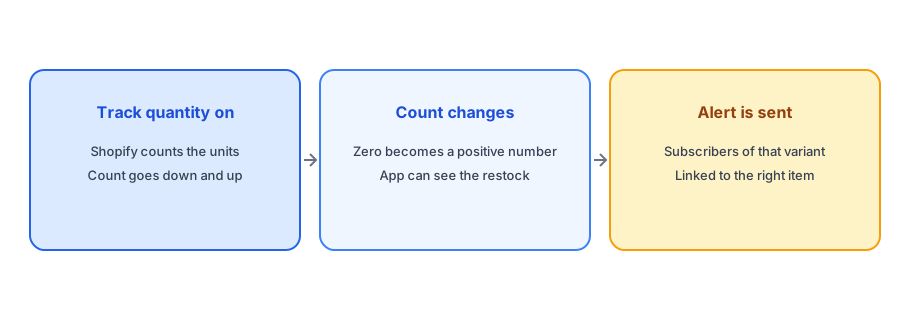
Each product variant in Shopify has an inventory setting called Track quantity. When it is on, Shopify keeps a count of available units, reduces it as orders are placed and lets you adjust it as stock arrives. When it is off, Shopify treats the variant as always available. It does not know how many you have, so it cannot show "sold out", and it cannot detect a restock because there is nothing to restock from. Any app that watches inventory to decide when a product is back has nothing to watch.
How to Check It for a Product
Open the product in your Shopify admin and scroll to the Inventory section. You should see a Track quantity checkbox. If the box is ticked, Shopify is counting; if it is clear, it is not. For products with several variants, check each variant, since the setting is applied to the variant's inventory item rather than the whole product. A quick test is to look at the product list: variants with tracking on show an inventory figure, while untracked variants show no stock number.
Why Tracking Gets Switched Off
Stores end up with untracked variants for ordinary reasons. Digital goods and services do not need stock counts. Dropshipped items may be sold without a count because the supplier holds stock. Some merchants switch tracking off to avoid overselling headaches, or products were imported from a spreadsheet without inventory columns. None of these is wrong on its own, but if a physical product can sell out and return, it needs tracking on if you want restock alerts. Our posts on alerts for dropshipping stores and print-on-demand stores explain why those models need extra thought.
Once Shopify is counting, Griffin does the rest: it watches for the restock and emails the subscribers of that variant.
Install Griffin on ShopifyTurning It On Without Breaking Anything
Tick the box and enter the real quantity for each location that holds stock. Do this carefully: if you tick Track quantity and leave the count at zero, the variant will show as sold out immediately, and customers will not be able to buy it. Enter the true number first, or do it outside peak hours. Check that the stock sits at a location that can ship online orders; our post on alerts for multi-location stores explains why stock at the wrong location does not count as available.
Continue Selling When Out of Stock
Next to Track quantity you will see a setting for continuing to sell when a variant is out of stock. With it on, customers can still order at zero, so the variant never shows as sold out, which also means a Notify Me form has nothing to do. Decide deliberately, per product, whether you want to take backorders or show sold out. Our guide to alerts when continue selling is on covers the trade-offs.
Check After Integrations and Imports
Integrations and bulk imports can reset or change tracking without warning. A warehouse connection might create variants untracked, and a CSV import without inventory columns can leave tracking off. After any big change, spot-check a few products. If alerts later go quiet, this is one of the first places to look, alongside the steps in our guide to why back-in-stock alerts fire late.
Spot Untracked Products in Bulk
If you have a large catalog, checking each product one by one is slow. Use the product list in your admin and look for variants that show no inventory figure, or filter and export your products to a spreadsheet and look at the tracking column. Sort by products that have sold recently, since those are the ones most likely to matter. Fix the busiest items first, then work through the rest. A few minutes spent on this audit once is usually enough, and it is worth repeating after any large import or app change.
A Practical Checklist
- Open each physical product and confirm Track quantity is ticked for every variant.
- Enter the true stock for each location before enabling tracking.
- Confirm stock sits at a location that can ship online orders.
- Decide per product whether continue selling is on.
- Re-check a sample after imports and integration changes.
FAQ
Why is my back-in-stock alert not triggering?
A common cause is that Track quantity is off for the variant, so Shopify never records a change in stock for an app to detect.
Is Track quantity set per product or per variant?
Per variant. Check every variant of a multi-variant product.
What happens if I turn it on with a count of zero?
The variant shows as sold out immediately. Enter the real quantity first.
Does continue selling affect alerts?
Yes. If customers can still buy at zero, the variant never shows as sold out, so there is nothing to restock.
The Bottom Line
Restock alerts follow a number, and the number only exists if Shopify is counting. Check Track quantity on every variant that can sell out. Griffin is a Shopify back-in-stock app you can install from the Shopify App Store, free to start.