Backorders are one of the easiest ways to keep selling when stock runs out, and one of the easiest ways to create angry customers. The product is the same, but the expectation is not: a shopper who knows the item will ship in three weeks is a fair customer, while one who finds out afterwards is a refund request. The difference is almost entirely wording. A clear backorder message, written once, can prevent most of the confusion, and this post gives examples and a structure. We cannot quote how much clear messaging reduces complaints, because we do not have reliable data for that, so we stick to the reasoning. Where we mention Shopify settings, they reflect how the admin works at the time of writing, so check current documentation.
Backorder, Preorder and Out of Stock Are Different Promises
Each term sets a different expectation, and mixing them confuses people. Out of stock means you cannot sell it now. A backorder means you will take the order now and ship when stock arrives, usually after an unplanned stockout. A preorder means you are selling something before its release or arrival, usually with a planned date. In Shopify, the continue-selling setting is what lets customers order at zero stock, and by itself it does not tell them anything about delays. That is why the messaging has to come from you. Our guides to alerts when continue selling is on and back-in-stock alerts versus preorders explain the differences.
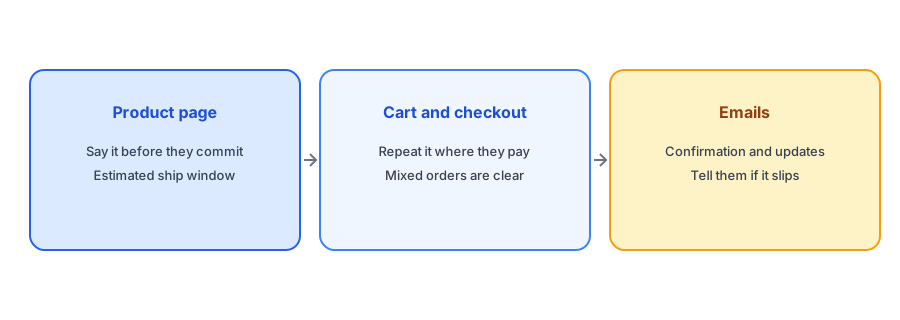
On the Product Page: Say It Before They Commit
The product page is where the expectation is set, so the message belongs near the add-to-cart button, not buried in the description. Keep it specific and honest. Examples:
- Backordered. Ships in 2 to 3 weeks.
- Out of stock. Order now and we will ship it when it arrives, expected in early April.
- Available on backorder. Estimated dispatch: mid May. We will email you if that changes.
Prefer a window to a precise date unless stock is confirmed, for the reasons in our guide to showing an estimated restock date. Change the button label too, if your theme allows, so that it says "Pre-order" or "Order on backorder" rather than a plain "Add to cart". A button that tells the truth removes the surprise.
In the Cart and at Checkout
Many shoppers add several items, and a backordered item in a mixed order is where confusion peaks. They expect everything to arrive together. Say, near the item in the cart, that it ships separately or later, and explain whether the rest of the order will ship now. If your theme or checkout settings allow a custom note, add a line such as "This item is on backorder and will ship separately." Whether you split shipments or hold the whole order is your policy; state it clearly so customers are not left guessing.
Not taking backorders? Keep the sale alive another way. Griffin adds Notify Me to sold-out variants and is free to start.
Install Griffin on ShopifyIn Emails: Confirmation, Updates and Slips
The order confirmation is your second chance. Repeat the expected ship window in plain language, near the top. Then keep your promise to update: if the date slips, email affected customers before they have to ask, and offer a clear choice such as waiting or cancelling for a refund. Rules about delivery estimates, delay notices and refund rights differ by region, so check what applies to you. Our shipping delay banner copy and replies for "when will it be back in stock?" give wording you can adapt.
When Backorders Are Off, Use Notify Me
Not every product suits backorders. If supply is unpredictable, if the item is high value or if you cannot fulfil promises on time, leave continue selling off and offer a restock alert instead. The shopper gives an email, you tell them when stock returns and nobody has paid for something you cannot ship. Griffin does this by notifying the subscribers of the variant that returned. You can run both models side by side, backorders on dependable items and alerts on the rest. Decide per product.
Common Mistakes
The usual problems are an add-to-cart button that does not change, a ship date hidden in a policy page, a promise made on one product that does not apply to another in the same cart and silence when a date slips. Another is vague wording such as "ships soon", which means nothing to the customer. Replace it with a window. Read your own product page as a stranger would and ask whether they would know, before paying, that they will wait.
A Practical Checklist
- Show the backorder status and ship window next to the add-to-cart button.
- Change the button label so it does not say a plain "Add to cart".
- Repeat the message in the cart and in the order confirmation email.
- State what happens in mixed orders.
- Email customers early if the date slips, and offer a refund option.
- Use Notify Me instead for products you cannot promise to ship.
FAQ
What should a backorder message say?
That the item is on backorder, when you expect to ship it as a window, and what will happen if the date changes.
Where should I show the message?
Near the add-to-cart button, in the cart and in the order confirmation email.
Is a backorder the same as a preorder?
No. A backorder usually follows an unplanned stockout, while a preorder sells something ahead of a planned release or arrival.
When should I use Notify Me instead of backorders?
When supply is unpredictable or you cannot be sure of shipping on time. The shopper is told when stock returns and nothing is paid up front.
The Bottom Line
A backorder is a promise with a delay attached, so say the delay clearly, repeat it and update customers if it changes. Griffin is a Shopify back-in-stock app you can install from the Shopify App Store, free to start.