Discontinuing a product is a normal part of running a store: a formula changes, a style gets retired, a supplier drops a SKU. What often gets overlooked is the back-in-stock waitlist that product quietly built up while it was selling out. Those subscribers on discontinued products don't get notified that anything changed, because nothing restocks to trigger a notification. The signups just sit there, representing real demand for a product that's never coming back, until the merchant decides to do something about it.
Why a Discontinued Product Still Has an Active Waitlist
A back-in-stock signup is a shopper telling you, directly, that they want a specific product. When that product is permanently retired, nothing about the signup itself changes. The shopper who subscribed is still sitting there expecting an email someday, and the app keeps collecting new signups from anyone else who stumbles onto that sold-out page, unless the merchant explicitly turns that off. A shopify product permanently sold out page left unmanaged doesn't resolve the demand it already captured. It just lets more of it pile up pointlessly.
The Mistake: Treating a Replacement Launch as a Restock
The riskiest move here is also the most tempting one. When a near-identical product launches to replace the discontinued item, it's easy to assume the old waitlist can just get folded into the new one, or worse, to let an automated restock notification fire because the new SKU looks close enough. It isn't the same product, and the subscriber didn't sign up for "something similar," they signed up for a specific item. Notifying them that it's "back" when it's actually a different product erodes exactly the trust a back-in-stock program depends on.
The Better Move: One Honest Email, Then Redirect
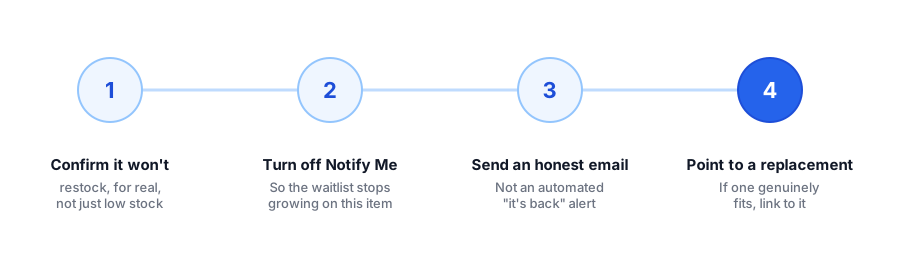
Instead of an automated "it's back" notification, send a separate, clearly labeled email explaining that the original product has been discontinued, and pointing subscribers to the closest replacement, if one genuinely fits. This is almost always a manual step. A back in stock waitlist never restocking isn't something an app can resolve on its own, since matching a discontinued item to a real replacement takes judgment about the actual product, not just a SKU that happens to look similar. If your back-in-stock app supports exporting that subscriber list, as covered in our guide on what transfers when switching back-in-stock apps, that export is exactly what you'd use to send this one-time message yourself.
See how Griffin tracks subscriber demand per product, so you always know which waitlists need attention.
Install Griffin on ShopifyWhat If There's No Real Replacement?
Sometimes a product is retired outright with nothing that genuinely replaces it. In that case, redirect subscribers to the closest relevant collection page rather than forcing a fit that isn't there, and turn off new signups on the product itself. If you're also deciding what to do with the product page's URL at this point, that's a related but separate decision: our post on whether hiding out-of-stock products hurts your Shopify SEO covers the redirect approach that preserves the page's existing search value if you choose to retire the URL too.
How to Avoid This Pile-Up Next Time
The cleanest fix is catching this earlier. The moment you're confident a product isn't restocking, two things should happen together: turn off the Notify Me button on that product so the waitlist stops growing, and decide what, if anything, existing subscribers should hear. Waiting until the waitlist has grown for months just makes the eventual cleanup bigger. Treating "discontinued" as its own deliberate status, rather than letting a product quietly fade into permanent out-of-stock limbo, keeps your subscriber list meaning what it's supposed to mean: real, actionable demand.
FAQ
Should I send a back-in-stock email when a replacement product launches?
No. Treating a new, similar SKU as the old discontinued product restocking misleads subscribers who signed up for a specific item. Send a separate, clearly worded email explaining the original is discontinued and pointing to the replacement, if one genuinely fits.
What happens to a back-in-stock subscriber list if I never restock the product?
It just sits there collecting new signups indefinitely unless you act on it. Export the list if your app supports it, reach out once with an honest update, and turn off the signup option so it stops growing.
Should I keep the Notify Me button active on a discontinued product's page?
No. Once you're confident the product won't come back, turn the button off so you stop collecting signups for interest you can't fulfill.
Can a back-in-stock app automatically redirect subscribers to a replacement product?
Not generally. Matching a discontinued item to its closest replacement takes merchant judgment an app can't make on its own, so this is almost always a manual, one-time step.
The Bottom Line
A discontinued product doesn't erase the waitlist it already built. Left alone, that list either sits uselessly or gets misused the moment a similar product shows up. One honest, manual email, a redirect to a real replacement when one exists, and turning off future signups is a short process that respects the demand data you worked to collect in the first place.
If you're managing subscriber lists across products, Griffin's subscriber analytics make it clear which products still have active demand waiting. Install Griffin on the Shopify App Store to see it on your own store, free to start.