Sometimes an app is not working for you, the price has stopped making sense or you are moving to another tool. Uninstalling is usually one click in your Shopify admin, but it is not always the end of the job. Leftover code can leave a dead button on your product pages, orphaned embeds can slow your theme and subscribers who asked for alerts may be left waiting. This guide covers how to uninstall a back-in-stock app, in the order that avoids surprises. Steps reflect how Shopify works at the time of writing, so check current Shopify documentation, and read the vendor's own removal instructions, which may differ.
Before You Remove Anything
Do two things first. Duplicate your live theme so that you have a backup; if anything breaks when you remove code, you can restore it. And decide what to do about your subscribers, since the people who signed up to be notified about products are waiting on an email you are about to stop sending. If you are moving to another app, our guide to switching back-in-stock apps explains what transfers and what does not. If you are removing alerts altogether, think about whether you should tell subscribers.
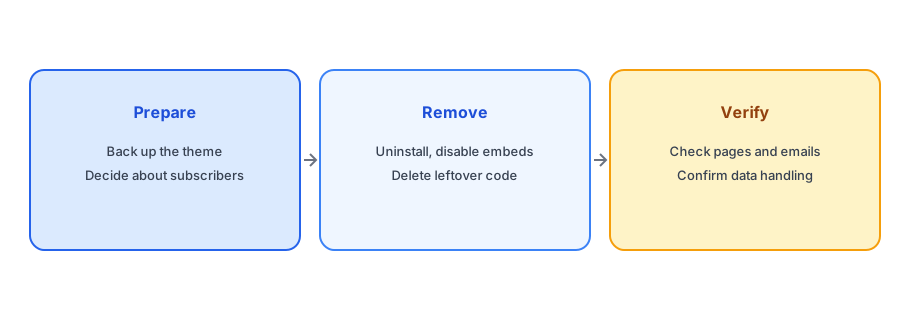
Step One: Disable the App Embed and Blocks
Open the theme editor and turn off the app's embed in the app embeds section, and remove any app blocks you added to product pages or templates. Doing this before you uninstall lets you see the page change and confirm the button is gone. If the app was added to several themes, check each theme that is still published or that you may revert to.
Step Two: Uninstall the App
In your Shopify admin, find the app in your apps list and uninstall it. Shopify removes the app's access to your store. Apps built with the current theme extension approach generally leave little behind once their embeds are off, but older install methods may have added snippets or script references directly to theme files.
Step Three: Look for Leftover Code
Search your theme code for the app's name, and for terms like "notify" or the vendor's domain, in the theme's layout, snippets and product template files. Do this on the duplicate first. If you find references that the app added, remove only what you are sure belongs to it, or ask a developer or the vendor's support to help. Leftover references to an app that no longer exists can cause console errors, extra requests that fail and, occasionally, an empty box on the page. Our post on how back-in-stock apps affect page speed explains how to check the effect.
Griffin adds Notify Me through the theme editor without editing theme code, which keeps removal simple. Free to start.
Install Griffin on ShopifyStep Four: Handle Subscriber Data
Think about the data the app held. Subscriber emails were collected so the app could send restock alerts, and they were collected for that purpose. Check the vendor's privacy policy for what happens to that data after uninstall, and how to ask for deletion. Shopify also sends privacy notifications to apps when a store is removed, but timing and handling differ between vendors, so ask rather than assume. If you want to move subscribers to a new app, check whether the data can be exported and whether you have the consent to do so; the people on the list asked for restock alerts, not for a new vendor. Our guide to customer data, deletion requests and CCPA explains how requests work.
Step Five: Verify
Visit sold-out and in-stock product pages in a private window, on desktop and phone. Confirm that no button, empty box or broken layout remains. Check your browser console for errors that mention the removed app. If you installed a replacement, run the full test in our ten-minute test plan. And keep the theme backup for a while before deleting it.
Billing and Timing
Check your billing before you uninstall. Shopify generally stops charging for an app once it is removed, but you should confirm how your plan's billing cycle works, and whether any usage charges are still to come. Also pick a quiet time for the change, not the middle of a sale, and tell your team so nobody is surprised by a missing button. If you are replacing the app, install and test the new one first, then remove the old one, so that sold-out pages are never left without a way to capture interest.
A Practical Checklist
- Duplicate your theme as a backup.
- Decide what happens to subscribers before you remove the app.
- Disable the app embed and remove its blocks, then uninstall.
- Search theme code for leftover references and remove only what you are sure about.
- Check the vendor's data policy and request deletion if needed.
- Verify on desktop and phone and keep the backup for a while.
FAQ
Does uninstalling remove the Notify Me button?
Usually, but leftover embeds, blocks or older injected code can remain. Disable embeds first and check the page afterwards.
What happens to my subscribers if I uninstall?
They stop receiving alerts from that app. Decide beforehand whether to move them, which needs suitable consent, or to tell them.
How do I find leftover app code?
Search your theme files for the app's name or domain, working on a duplicate theme first.
How do I get my data deleted?
Check the vendor's privacy policy and contact them. Griffin's policy tells people to email hello@griffincodes.com to exercise rights such as deletion.
The Bottom Line
Back up, disable, uninstall, clean up and verify, in that order. Griffin is a Shopify back-in-stock app you can install from the Shopify App Store, free to start.