Most back-in-stock apps price by notifications per month, and that works fine until one product goes viral. Suppose a store on a 1,000-notification plan restocks a bestseller with a 900-person waitlist. One restock uses nearly the whole month, and every other product that comes back in the following weeks has almost nothing left. A restock notification cap solves that by limiting how many emails a single restock can send. This guide explains how caps work, how to choose a number, and when a cap is the wrong tool.
Why One Restock Can Drain a Month
Notification allowances are usually counted per email, not per restock. Plans count each restock email sent, so the back in stock app monthly notification limit is shared across every product you sell. A handful of hot products with long waitlists can use most of it, and the rest of the catalog gets nothing.
There is also a second problem. If you restock 50 units and email 900 people, at most 50 of them can buy. The other 850 click through to a sold-out page, sometimes minutes after the email arrived. That is a poor experience, and it trains your most interested customers to ignore your restock emails. We wrote about this in our guide to limited restocks and waitlists.
How a Per-Restock Cap Works
A cap sets the maximum number of shoppers notified for one product each time it comes back. When a product restocks, the app sends emails until it reaches the cap, then stops. Subscribers over the cap are not deleted. They stay subscribed and can be notified on the next restock.
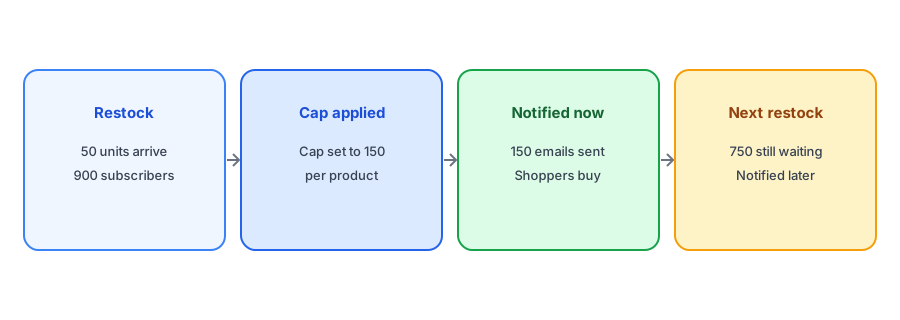
In Griffin, the setting is called Max notifications per product, under Settings, then Rules. It applies per product, each time that product restocks, and 0 means no limit, which is the default. When the cap is reached, Griffin stops sending for that restock and marks the remaining notifications for that restock as cancelled in the Notifications report, so you can see exactly how many people were held back. Those shoppers keep their subscription and are emailed when the product restocks again.
How to Choose a Cap
There is no universally right number, but a few rules of thumb help you limit back in stock emails per restock without leaving sales on the table.
Start from how many units you usually restock
If a typical restock is 30 to 60 units, a cap of several times that leaves room for shoppers who do not buy while still keeping the email count proportionate to what can actually be sold. Look at your own history: on recent restocks, how many of the notified shoppers bought? If roughly one in five did, a cap around five times your typical unit count is a sensible starting point. That ratio is an illustration, not a benchmark, so use your own numbers.
Then check it against your monthly allowance
Divide your plan's monthly notifications by the number of restocks you expect in a busy month. If you have 1,000 notifications and expect around ten restocks of products with waitlists, a cap of about 100 per product keeps any one restock from taking more than a tenth of the month.
Revisit it after a busy month
If the Notifications report shows many cancelled emails on products that sold out again quickly, the cap is doing its job. If products restock with plenty of stock and you still hit the cap, raise it, because those shoppers could have bought.
Griffin lets you cap how many shoppers are notified per product on each restock, and the free plan includes 100 notifications a month.
Install Griffin on ShopifyWhen to Leave the Cap Off
A cap helps when stock is scarce relative to demand or when your allowance is tight. It hurts when you restock deeply. If you receive 500 units of a product with 200 subscribers, a cap of 100 would leave 100 interested shoppers waiting for no reason. Large, predictable restocks of core products usually do not need a cap at all. A cap is also unnecessary if your plan's allowance comfortably covers your busiest month. On those stores, the more useful control over restock email volume is keeping the list clean, which our guide to expiring old requests covers.
Caps, Timing and Fairness
Caps work alongside two other decisions. The first is timing: emails that go out quickly after the restock give shoppers the best chance before stock runs out. Our post on how fast a restock alert should go out covers the trade-off. The second is fairness: if you cap emails, say so in your restock message when stock is limited, and consider whether a waitlist with a clear order suits a truly limited drop better. Our guide to running a fair waitlist for a limited restock goes deeper.
A cap is also not a substitute for knowing how many alerts per restock your plan can afford. Our breakdown of free plan notification limits explains how monthly allowances are counted.
FAQ
What is a per-restock notification cap?
A limit on how many shoppers are emailed for one product each time it comes back in stock. Subscribers over the limit stay subscribed for the next restock.
Does a cap delete subscribers?
No. In Griffin, the extra notifications for that restock are cancelled, but the shoppers keep their subscription and are notified on a later restock.
How do I pick a cap?
Start from your typical restock size and how many notified shoppers usually buy, then check it against your monthly allowance and adjust after a busy month.
When should I not use a cap?
When you restock deeply or your monthly allowance easily covers your busiest month. A cap then only delays shoppers who could have bought.
The Bottom Line
A per-restock cap keeps one popular product from using your whole month and spares shoppers from clicking through to stock that is already gone. Griffin includes the setting and is free to start: install it from the Shopify App Store.