A post, a story or a link in bio does not expire the way stock does. A video can keep sending visitors to a product for weeks after it sold out, and a link in your profile can point to an item that has been gone since last month. Every one of those clicks is a visit you earned. Handling a sold out product link social media audiences click is partly housekeeping and partly an opportunity, since people who clicked from a social post are interested enough to tap. We have no reliable data on how social traffic behaves on sold-out pages, so this post sticks to practical steps and avoids invented figures.
What Visitors See When They Land
A shopper taps a link and arrives on a product page with a sold-out label and, on many stores, nothing else. They came from a feed, in a hurry, probably on a phone, often in the app's built-in browser. If the page does not explain what is going on and offer something to do, they go back to scrolling. That is a lost visit and, if the post was an ad or a paid collaboration, lost money. Our post on protecting your ad spend from sold-out products covers the paid side.
Before You Post: Check the Links
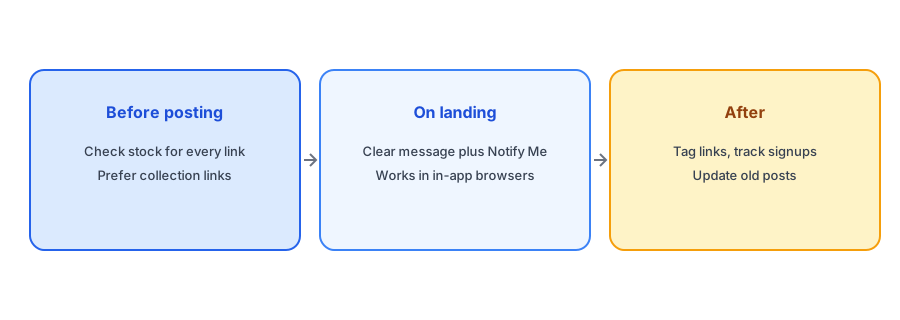
Make checking stock part of your posting routine. Before publishing, open every product link you plan to include and look at the availability of the variants that matter. If a product is nearly sold out, think twice about making it the star of a post that will keep working for weeks. Where it makes sense, link to a collection rather than a single product: a collection page can still show available items when one is gone. Keep a short list of evergreen links, such as your bestsellers category, for link-in-bio tools, and review it weekly.
Make the Landing Page Work for Social Traffic
For links that do land on a sold-out product, the page needs to do three things quickly: say clearly that the item is sold out, give a way to be told when it returns and, where possible, show an alternative. Keep the form short, since social visitors are impatient; see our guide to Notify Me form fields. Make sure it is visible without scrolling on a phone; our post on popup versus inline placement explains how to test that.
Turn a sold-out social click into a signup. Griffin adds Notify Me to each sold-out variant and is free to start.
Install Griffin on ShopifyTest in the In-App Browser
Many social apps open links in their own built-in browser, which can behave differently from your phone's usual browser. Popups, embedded forms and some scripts may not work exactly as they do elsewhere. Open your sold-out page from a real post or story link inside the app and confirm that you can see and use the Notify Me form. If something breaks only there, tell your app's support and consider an inline form rather than a popup for that page. Do the test on both iPhone and Android where you can.
Measure With Tagged Links
To know whether social traffic is signing up, tag your links with campaign parameters so analytics can separate them from other sources. Then compare signups to sessions from social on sold-out pages, using the method in our guide to calculating your Notify Me signup rate. Keep tags consistent so that reports stay readable. If you find a post that keeps bringing traffic to a sold-out product, that is a strong signal about demand worth acting on, as described in our post on tracking customer demand.
Use the Restock as Content
When stock returns, social posts are a natural place to say so, and people who signed up for an alert will already have been emailed. Posting the restock is useful for everyone else and gives the earlier post a second life. Our restock announcement captions give ideas. If you collect emails from interested visitors, keep to the consent they gave; see our guide to collecting emails from out-of-stock shoppers.
A Practical Checklist
- Check stock for every link before posting and prefer collection links for evergreen content.
- Review your link-in-bio destinations weekly.
- Make sure sold-out landing pages say so and offer Notify Me above the fold on a phone.
- Test the page inside the social app's in-app browser.
- Tag links and track signups from social separately.
- Post the restock when it happens.
FAQ
What happens when someone clicks a social link to a sold-out product?
They land on the product page. Unless it explains the situation and offers a way to be told when it returns, many will leave.
Should I link to collections instead of single products?
For evergreen posts, often yes. A collection can keep showing available items when one product sells out.
Does Notify Me work in in-app browsers?
It can behave differently there, so test your sold-out page from a real post link inside the social app.
How do I measure signups from social?
Tag your links with campaign parameters and compare signups with sessions from social on sold-out pages.
The Bottom Line
Social links outlive stock, so check them before posting and make the landing page worth landing on. Griffin is a Shopify back-in-stock app you can install from the Shopify App Store, free to start.