You walk into the stockroom and see six units of a product that Shopify says is sold out. Meanwhile customers are landing on the page, finding a Sold out label and leaving. This is a phantom stockout: the system says no stock while physical stock exists. Shopify's own writing on inventory errors describes it, with a wrong-size item logged under the wrong SKU as a classic example. A phantom stockout costs sales quietly, because nothing looks broken. This post lists the usual causes and gives you a short audit. The inventory terms follow how Shopify's admin works at the time of writing, so check current documentation if your screens differ.
Cause One: The Count Is Wrong
The simplest cause is that the number in Shopify is lower than reality. A receiving error, a miskeyed quantity, an adjustment entered with the wrong sign or a product logged against the wrong SKU can all do it. Wrong-SKU errors are especially sneaky, because they create a pair of mismatches: one variant shows too little and another shows too much, and the totals can look fine. Scanning receipts against the SKU, rather than typing counts by hand, reduces this. A regular count catches the rest; our cycle count checklist gives a routine.
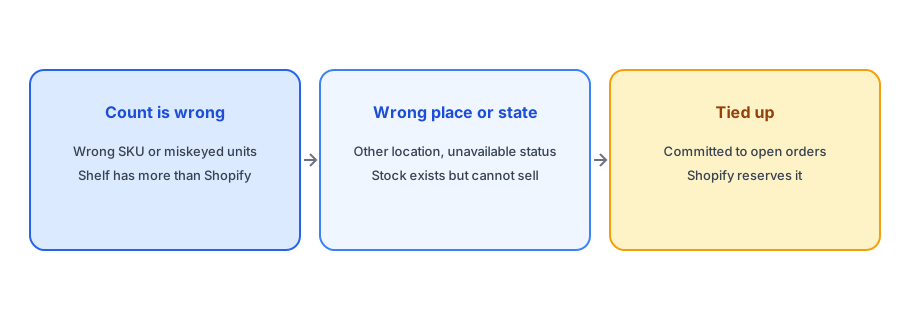
Cause Two: Right Stock, Wrong Place or State
Shopify tracks inventory by location and by state. Units can be on hand but not available to sell, for example when they are at a location that does not fulfil online orders, or when they have been moved into an unavailable status such as damaged or held for quality control. If you use several locations, stock that lands at the wrong one will not appear as sellable for your online store. Our post on alerts for multi-location stores explains how location affects availability, and the one on purchase orders and transfers covers inbound stock. Check the inventory view for each location and look at the available figure, not just the on-hand figure.
Cause Three: Units Tied Up in Orders or Holds
Available stock is on-hand stock minus units committed to open orders. If orders are sitting unfulfilled, cancelled orders have not restocked or draft orders are holding units, the available count can be lower than what is on the shelf. Look at your open and unfulfilled orders for the affected product: a pile of old orders that never shipped can explain a big gap. Returns can also leave stock in limbo if items are not restocked after inspection; our checklist on restocking returned items safely covers it.
While you fix the count, do not lose the shopper. Griffin adds Notify Me to each sold-out variant and is free to start.
Install Griffin on ShopifyA 15-Minute Audit
Pick the product that looks wrong and work through it. Step one: count the physical units. Step two: open the product's inventory in Shopify and note on-hand, committed and available for each location. Step three: if the shelf count is higher than on-hand, the count is wrong, so find the receipt or adjustment history. Step four: if on-hand is right but available is low, look at unfulfilled and draft orders. Step five: if the units are at another location, move or transfer them. Step six: correct the number with a clear adjustment reason so the history makes sense. Then write down what caused it, so the same error does not recur.
Why It Matters for Restock Alerts
Phantom stockouts distort alerts in two ways. While the count is wrong, you lose sales and any Notify Me signups collect for a product you actually have. When you fix the count, the quantity jumps from zero to positive and subscribers are emailed, which is correct but can look like a surprise restock. Understand what a fix triggers before you make it; our posts on false back-in-stock alerts and the Track quantity setting explain the mechanics.
Preventing the Next One
Prevention is mostly process. Scan rather than type when you can. Give each variant a unique SKU and keep a clear naming scheme. Receive stock into the right location. Process returns promptly. Review old unfulfilled orders weekly. And run a short count on your fastest sellers regularly, since they are where errors cost most.
A Practical Checklist
- Compare the physical count with on-hand, committed and available in Shopify.
- Check every location, not only the main one.
- Look for unfulfilled, cancelled or draft orders holding units.
- Check for stock in unavailable states.
- Fix the number with a clear adjustment reason and note the cause.
- Expect restock alerts to fire when a fix raises the count from zero.
FAQ
What is a phantom stockout?
A situation where Shopify shows no available stock while physical stock exists.
Why does Shopify show sold out when I have inventory?
Common causes are a wrong count or SKU, stock at a location or in a state that cannot sell, and units committed to open orders.
Will fixing the count send restock alerts?
It can. If the available quantity rises from zero, subscribers to that variant may be notified, so be ready for that.
How do I prevent phantom stockouts?
Scan receipts, use unique SKUs, receive into the right location, process returns promptly and run regular counts on fast sellers.
The Bottom Line
If Shopify says sold out and the shelf disagrees, check the count, the location and the open orders, in that order. Griffin is a Shopify back-in-stock app you can install from the Shopify App Store, free to start.