Agencies and freelancers set up apps for merchants all the time, and a back-in-stock app looks like an easy one: install, enable, done. The problems show up later, when a theme update removes the button, a client cannot find the settings or nobody knows whose card is paying for the plan. A shopify agency back in stock app client stores checklist should cover the whole life of the setup, not only the install. This post gives one. It is general guidance for any restock app, with Griffin facts limited to what Griffin publishes: Shopify 2.0 theme support without theme code edits, variant-aware alerts, double opt-in and a free plan to start.
Before You Touch the Store
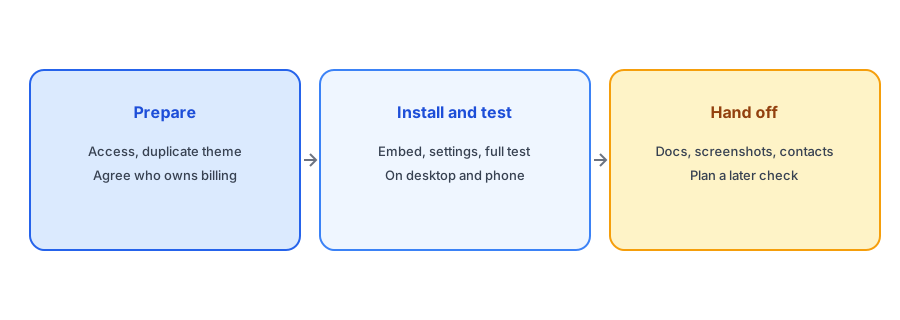
Get the right access, and get it in writing: a collaborator or staff account with permission to install apps and edit themes, not the client's owner login. Agree who owns the app subscription, and whether the client or the agency pays for any paid plan. Ask a few questions about their situation: which products sell out and return, whether they use a warehouse or integration that updates stock, whether they have a custom theme and which email tools they already use. And duplicate the live theme before you change anything, so there is a backup and a safe place to test. Our post on what breaks after a theme update explains why the backup matters.
Check the Foundations in Their Store
An alert app can only work if the store's inventory is set up correctly. Check that quantity tracking is on for the products that sell out, that stock is entered at a location that can sell online and that continue selling is set deliberately. Our guides to the Track quantity setting and phantom stockouts explain the common traps. If the client uses a warehouse or marketplace sync, ask how often it updates Shopify; see 3PL and ERP inventory sync. Fixing these before launch saves a lot of "why did it not send?" later.
Install, Enable and Configure
Install the app on the duplicate theme or on the live theme in a quiet period, enable its embed or block in the theme editor and configure the basics: the sender name that matches the client's brand, the email template and any plan settings. Keep the form short; our guide to Notify Me form fields explains why. Choose wording that fits the client's voice using our button text examples. If the client's theme is customized, check how it handles sold-out products, as covered in our post on disabling Add to Cart on sold-out products.
An easy first install for client stores. Griffin adds Notify Me without theme code and is free to start.
Install Griffin on ShopifyTest the Whole Path
Do not stop at seeing the button. Run a full test: sign up as a shopper on a sold-out test product, confirm the opt-in email if there is one, restock the variant and check that the email arrives with the right link. Test on a phone. Our ten-minute test plan walks through it. Check page speed before and after as well, using the method in our post on how apps affect page speed, because clients notice speed.
Hand Off Properly
A handoff document turns a one-time job into something the client can maintain. Include: what was installed and when, where the settings live, how to turn the Notify Me embed on and off, who owns the subscription and billing, screenshots of the configuration, the test steps you used and who to contact for support. Add a short note on the client's responsibilities, such as keeping quantity tracking on and updating stock promptly. Our FAQ of thirty questions and glossary make good attachments for non-technical clients.
Plan a Later Check
Put a reminder in the calendar to check the setup after a month and after any theme change. Confirm the button still appears, run the test and look at usage against the plan allowance. If the client later decides to leave the app, our guide to uninstalling cleanly covers the steps.
Set Expectations With the Client
Part of a good setup is telling the client what the app will and will not do. Explain that alerts follow the stock count in Shopify, so accurate inventory is their responsibility, and that a restock alert does not reserve stock or guarantee a sale. Agree how they should report problems and what is covered in your retainer. A short call or a one-page summary at handoff prevents the common misunderstanding that the app fixes inventory problems, when in fact it depends on the inventory being right.
A Practical Checklist
- Get collaborator access, agree billing ownership and duplicate the theme.
- Check quantity tracking, locations, continue selling and inventory syncs.
- Install, enable the embed and configure sender, template and wording.
- Run the full signup-to-email test on desktop and phone.
- Check speed before and after.
- Write a handoff document and schedule a recheck after a month and after theme changes.
FAQ
What access do I need to set up a restock app for a client?
A collaborator or staff account that can install apps and edit themes, rather than the owner's login.
Who should pay for the app subscription?
Agree this in advance. The store owner normally holds the subscription so it stays with the business if the agency relationship ends.
What should a handoff document include?
What was installed, where the settings are, how to disable it, billing ownership, test steps, screenshots and a support contact.
When should I recheck the setup?
After a month and after any theme update or change to how inventory is managed.
The Bottom Line
Back up, check the foundations, test the whole path and hand off with documentation. Griffin is a Shopify back-in-stock app you can install from the Shopify App Store, free to start.